Image Permissions and Downloading
The Library considers its extraordinary collection of books, maps, and prints an inalienable resource that has been protected and curated for nearly two centuries, but it also understands the value these sources have for potential audiences throughout the world. The digital revolution has made sharing the collection easier than ever before, allowing us to adopt an open access policy that will help our materials reach anyone who is interested in using them.

The download button is in the middle of the left image manipulation menu on Americana.

For single-page items, such as this print of pigeons, simply select the gray export button to begin the download process.
Single pages from books
If you want to download a specific page from a book on Luna, you need to first add the specific page to a Media Group.
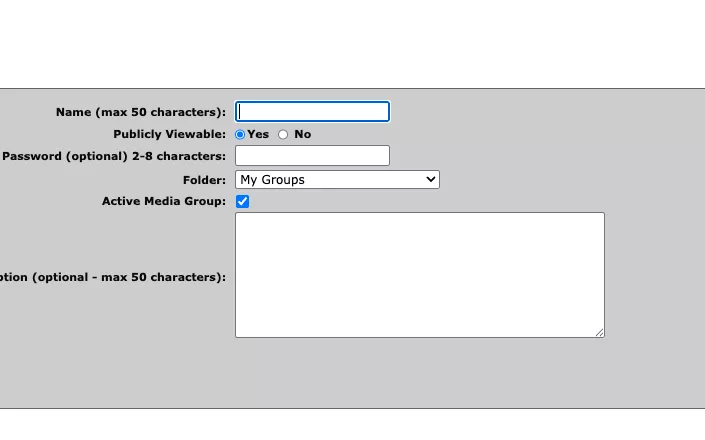
- Choose “Create” from the top menu and Create a New Media Group.
- This will be the “Active Media Group” you will save items to. You can also search for media groups under “Explore.” When you have chosen a media group, a gray tab along the bottom of your screen will tell you what media group is active.
- Search for the item.
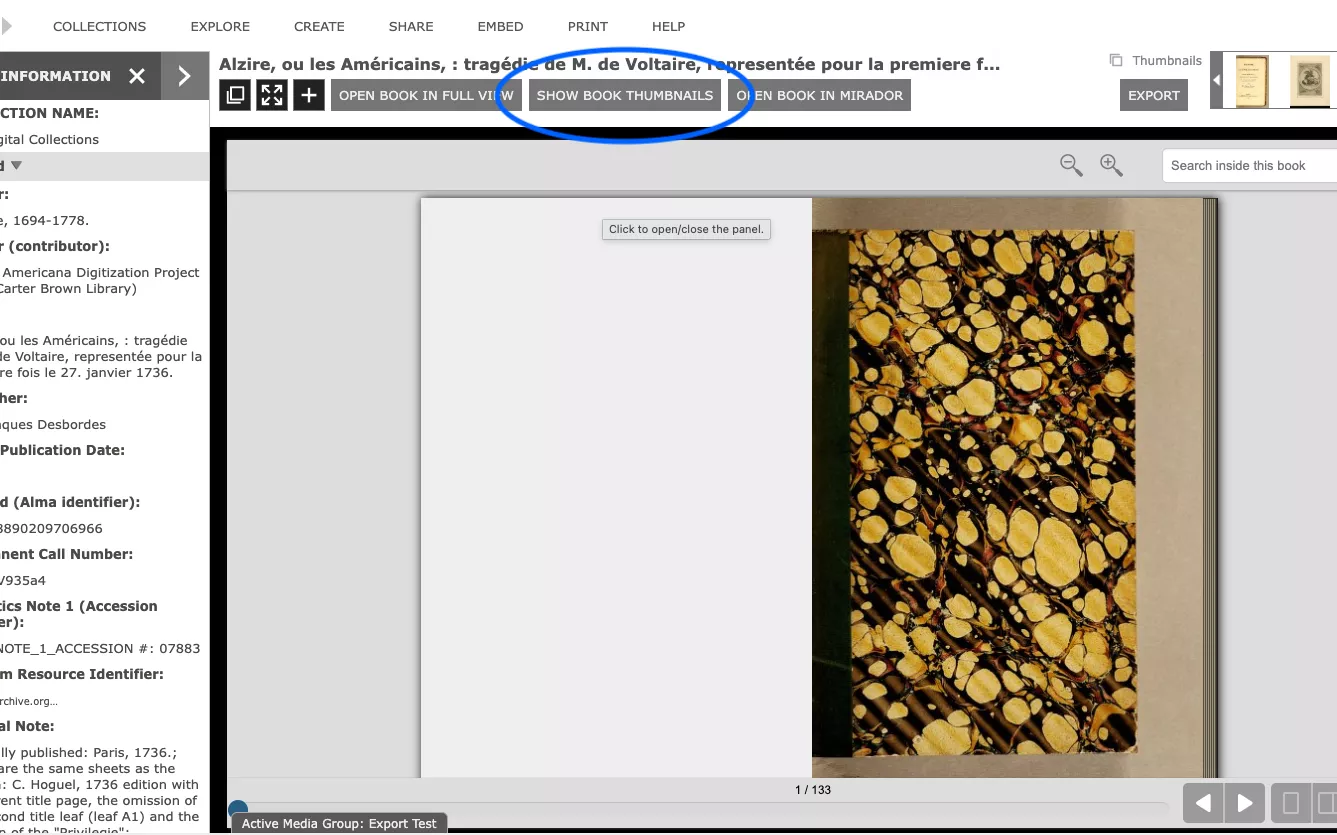
- Once you have found your item, click “Show book thumbnails” in the menu above the book viewer.
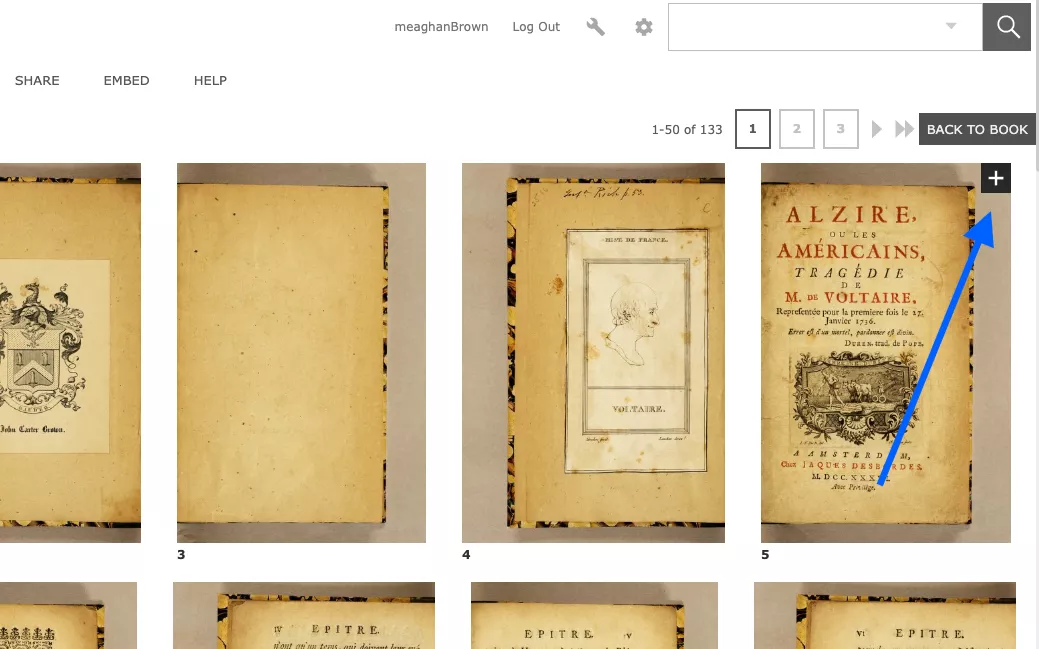
- Mouse over the page you want. A black box with a + will appear. Clicking this black box will add the single page to your active media group.
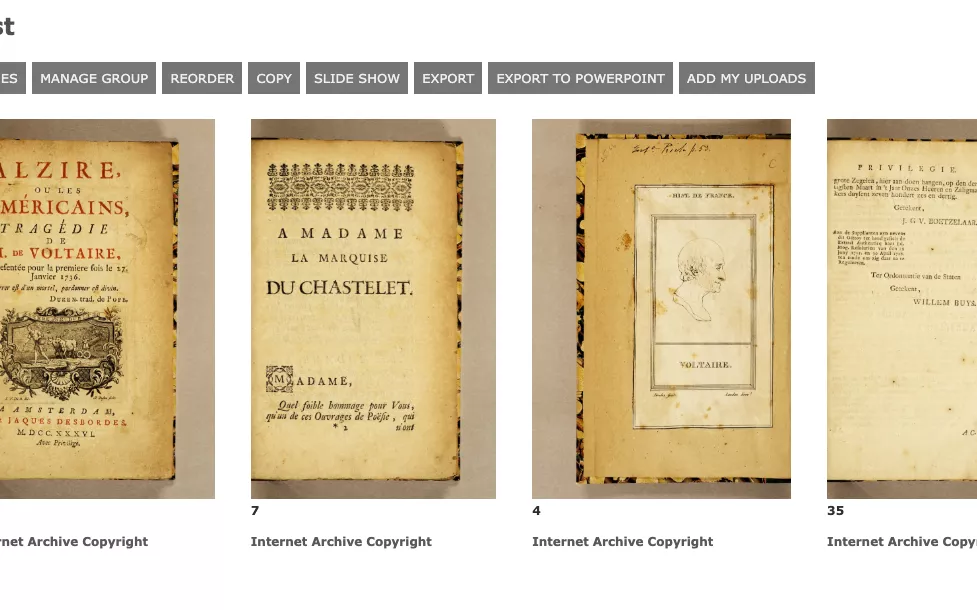
- Click on the gray media group title at the bottom of your screen to expand the group, and select “Go” to go to the media group page.
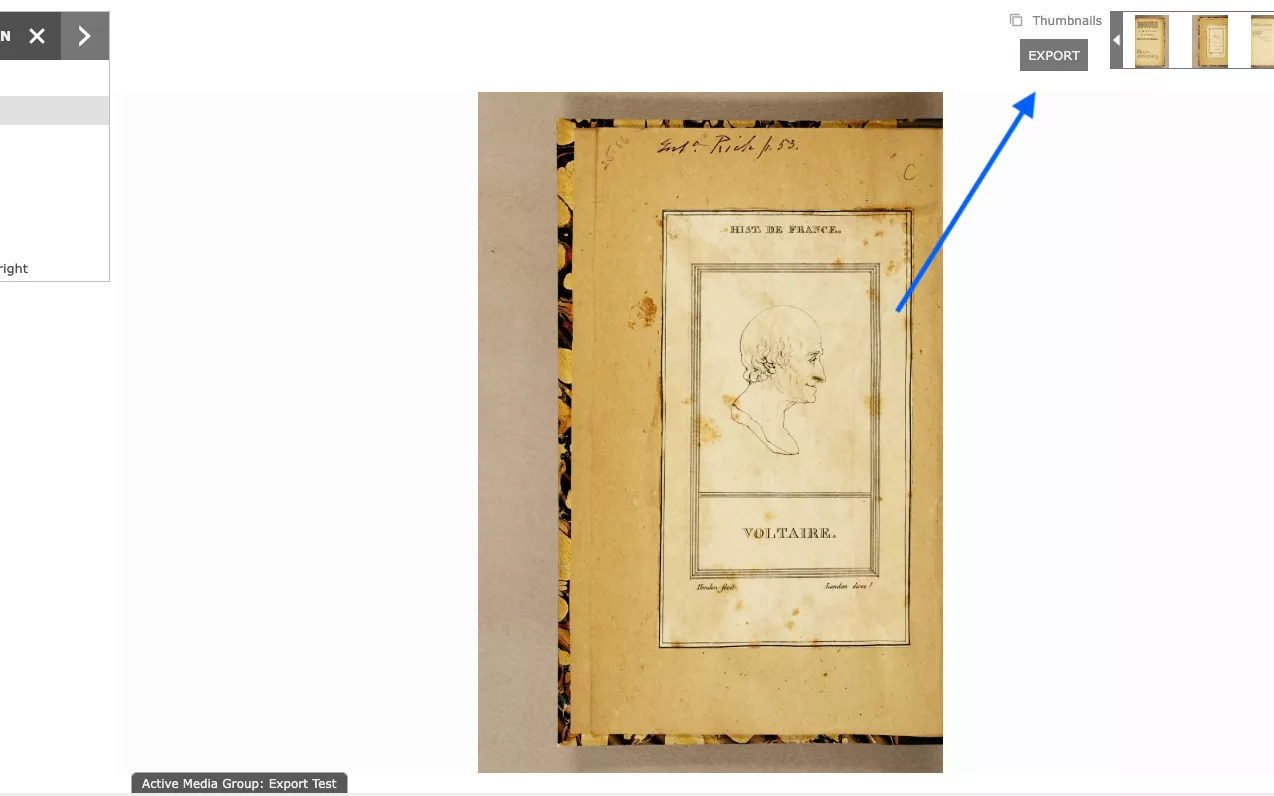
- If you select “Export” for the media group as a whole, the system will limit you to the “medium” size – it’s trying to save you from a huge download. Instead, click into the image of the individual page you would like to export before clicking the gray “Export” button.
- When you click “Export,” you will have the option of selecting the size of your exported file.
Downloading a single page from Luna